 Deutsch
 Nederlands
 Español
 Français
 English
 English
 The popular Newsleecher newsreader is capable of downloading articles from Usenet groups or downloading using NZB files. This newsreader automatically unpacks the downloads if needed and has been a popular choice among users for many years.
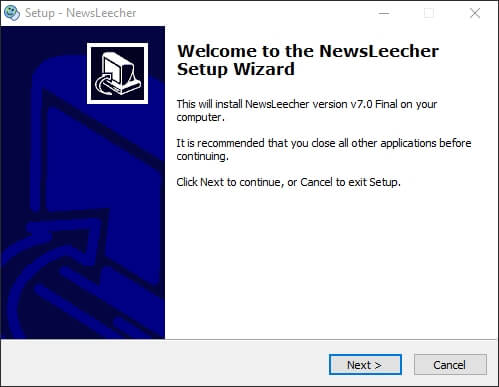
To get started with Newsleecher visit the official website and download the newsreader installer. https://www.newsleecher.com/software/. After the download has completed launch the newly downloaded setup file.

Read through the license agreement. If you agree with the terms select “I accept the agreement” to continue.
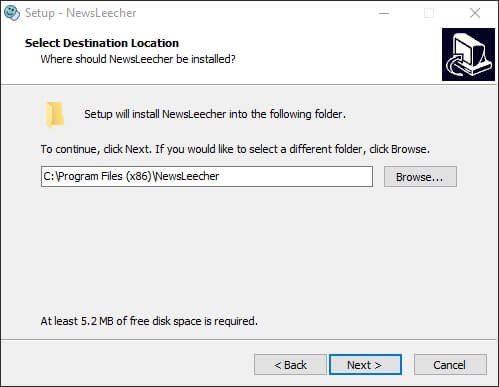
Now you can choose where you want the installed file be located on your computer. The default location is Program Files (x86), Newsleecher. If you would prefer a different location select “Browser” to choose a different folder.
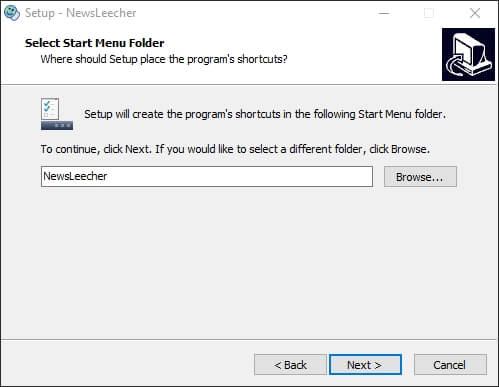
Newsleecher will create an entry in your Start Menu. You can specify a title here.
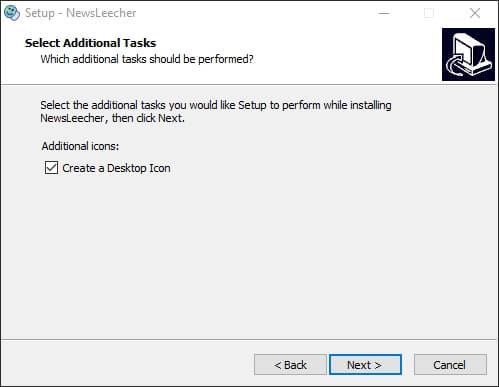
Now you have the option to create a Desktop Icon. The default option will create one, if you choose not too untick the box labeled “Create a Desktop Icon”
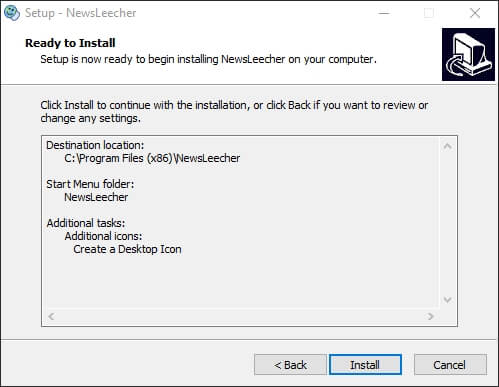
You can now review your setup information. If everything looks correct click on “Install” to begin the installation process.
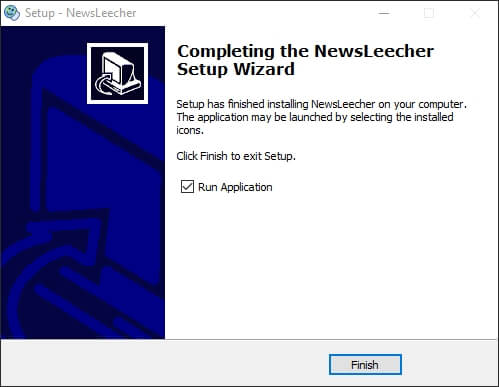
Setup is now complete. If you want Newsleecher to start after clicking “Finish” keep a check in the box labeled “Run Application”. If you don’t want Newsleecher to start after clicking “Finish” uncheck the box.
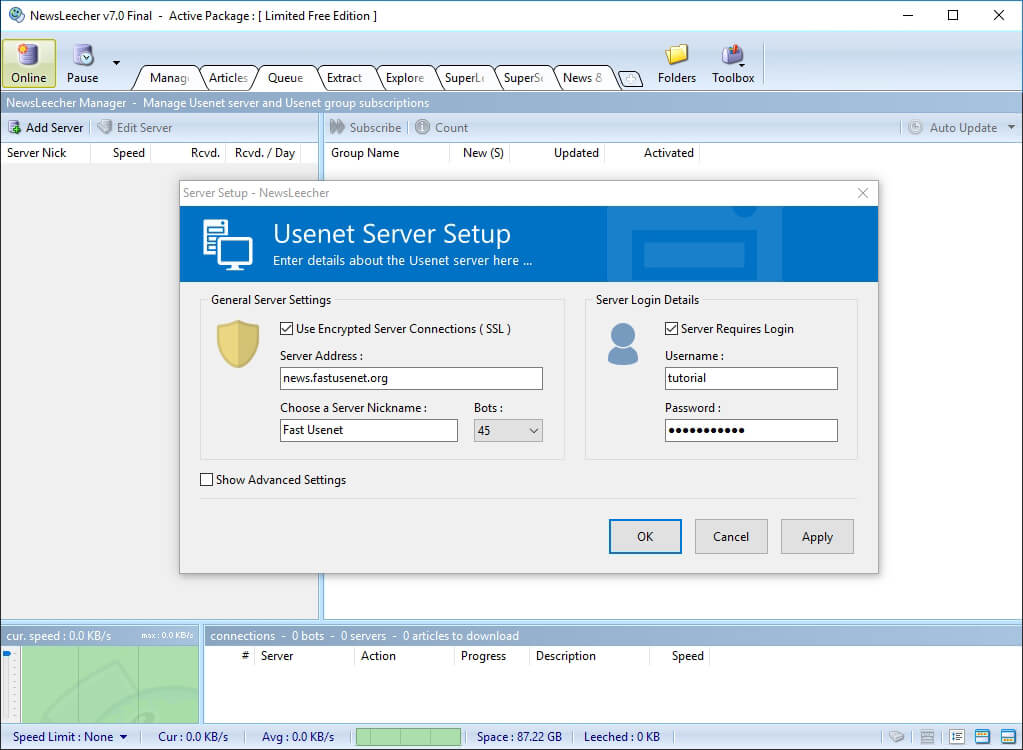
In the Newsleecher manager section to the left you can add a Usenet Server. Click on “Add Server” and enter the following information to setup Fast Usenet.
Server Address: news.fastusenet.org
Choose a Server Nickname: Fast Usenet
Bots: 45
Server Requires Login: Check the box
Username: FastUsenet-Username
Password: FastUsenet-Password
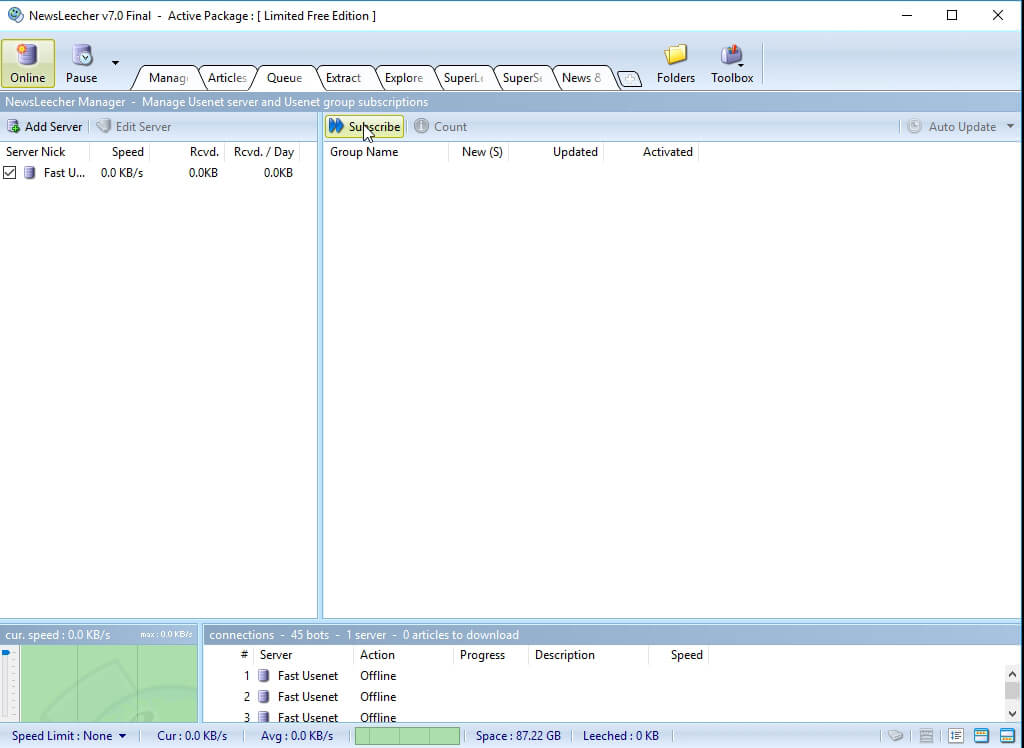
You should now see “Subscribe” at the top in the right menu of Newsleecher. Click “Subscribe” to retrieve the newsgroup list.
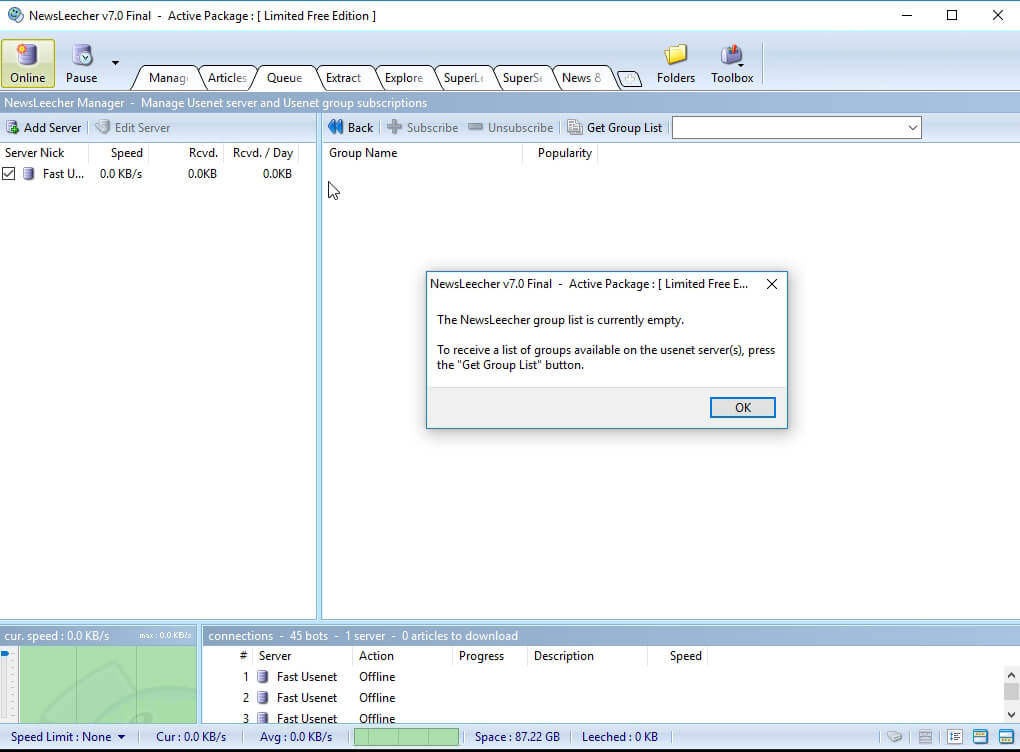
If you haven’t previously downloaded the newsgroup list this message will appear.
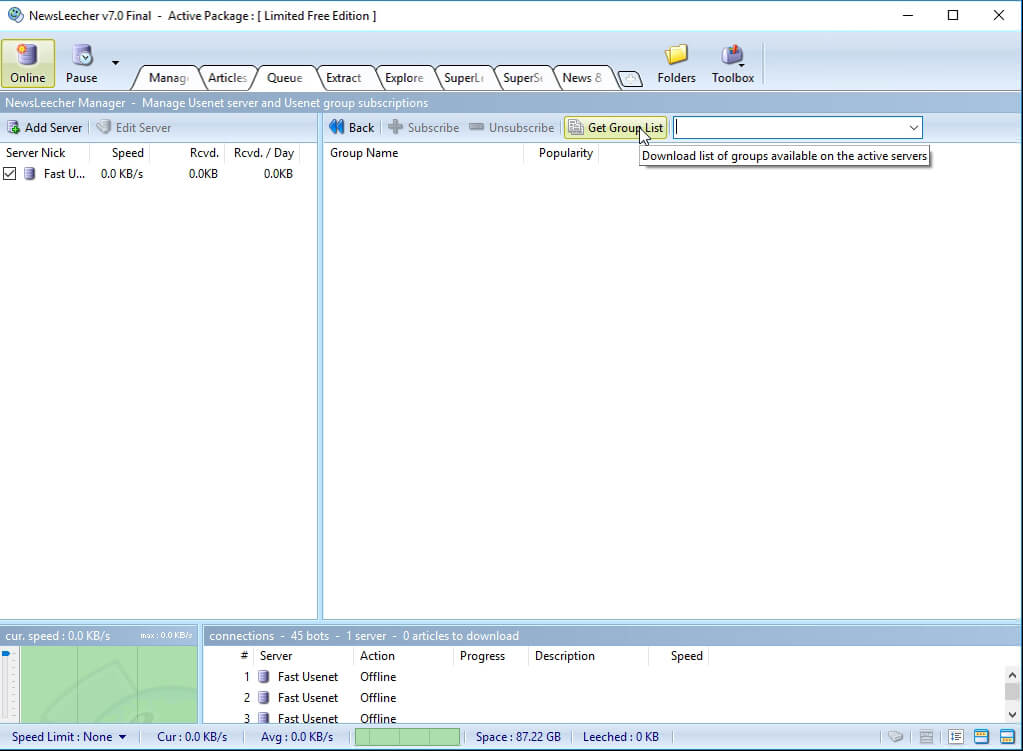
Now click on “Get Group List”. The latest version of the group list will be downloaded.
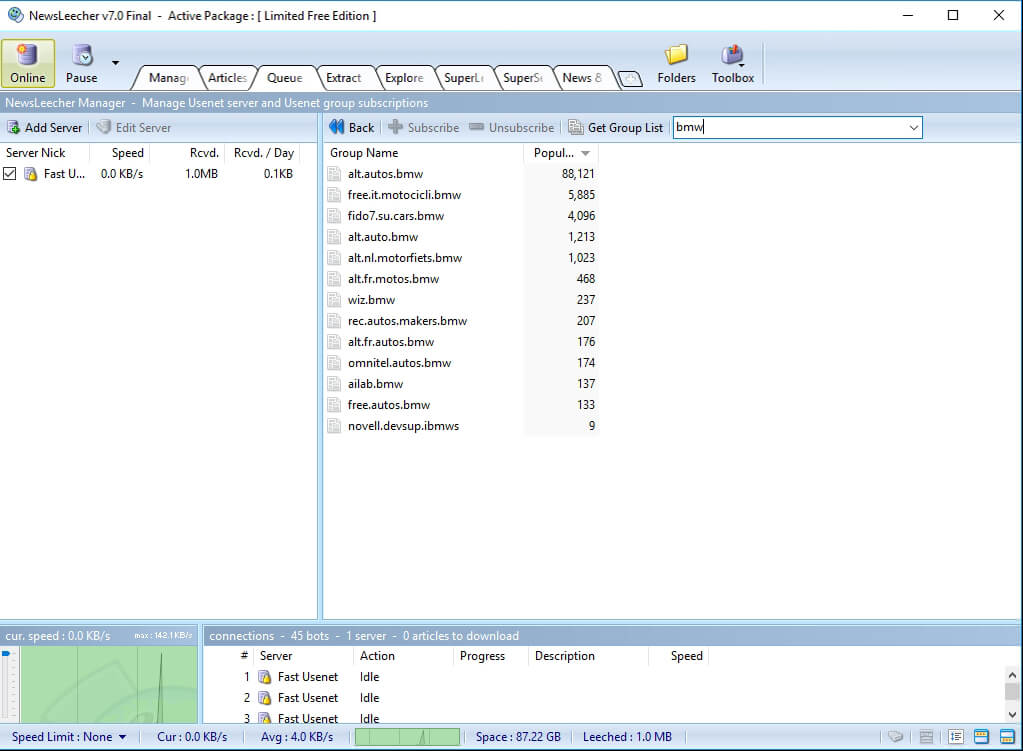
You should now see a large list of the available newsgroups. To help locate the group you are interested in you can filter the list by keyword. In this example, we are filtering the list for the word BMW. Now only newsgroups that contain BMW will appear. To subscribe to a group right click on the title and choose “Subscribe”.
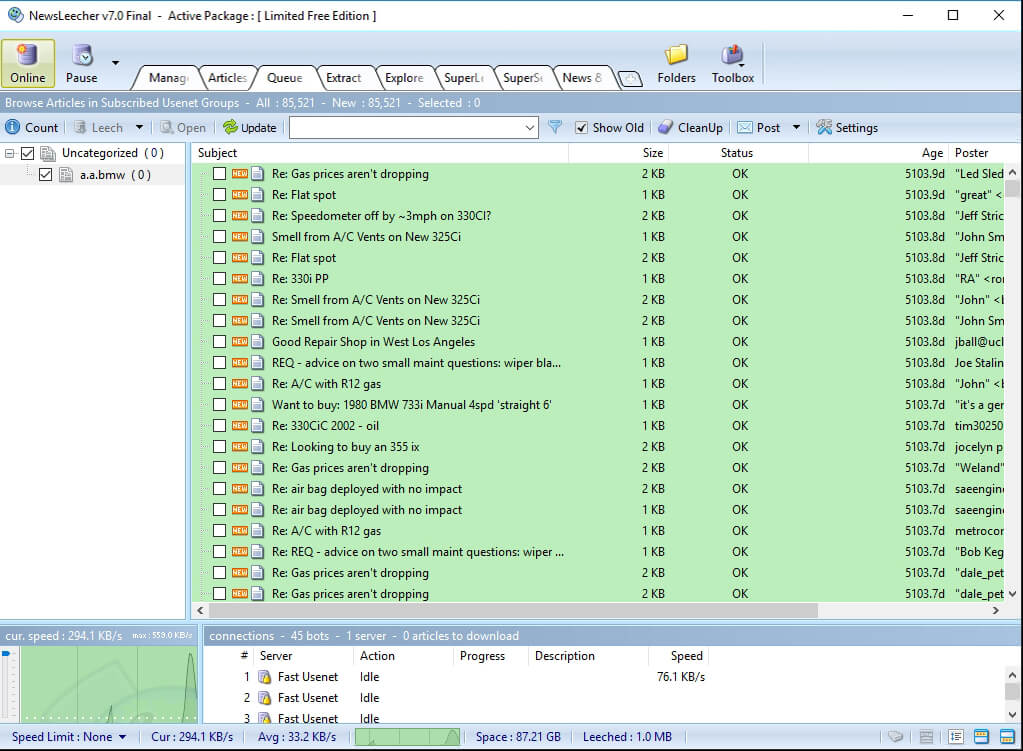
Now we are going to navigate to the “Articles” tab. You should now see the newsgroup you’ve subscribed to in the left menu under “Uncategorized”. To grab the latest headers right click on the group title and select “Update Groups”. Now you can choose the amount to articles you want to download.
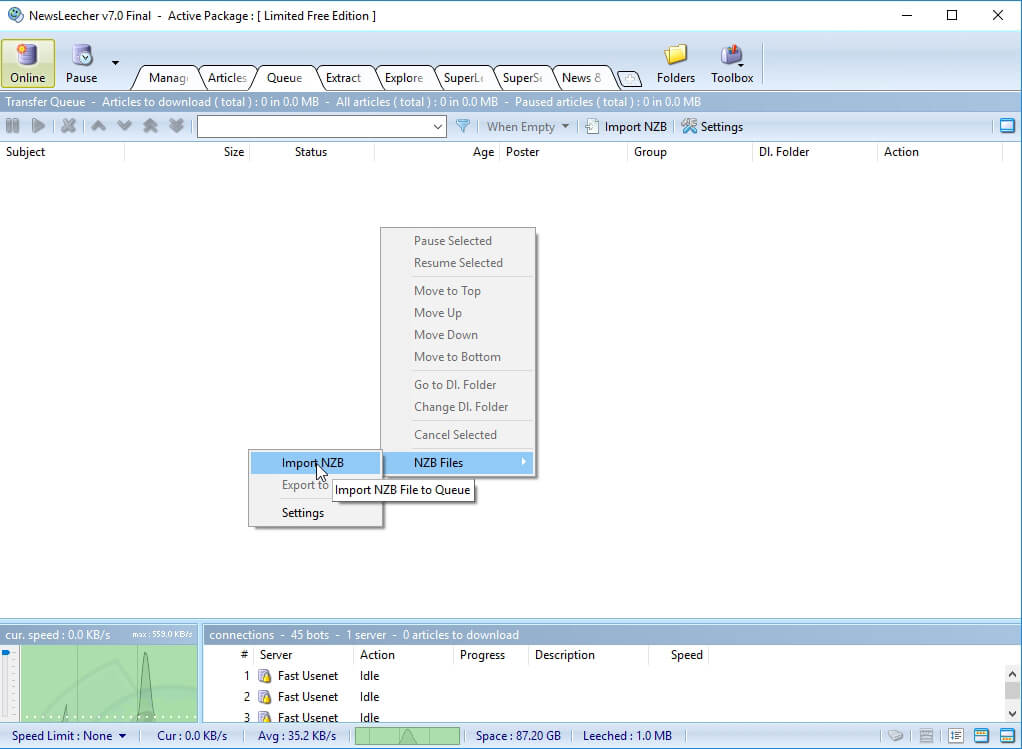
If you would like to utilize Newsleecher for downloading NZB files visit the queue tab. Now you can click on “Import NZB” file in the menu above, or right click and select “Import NZB”. Now locate the NZB file on your computer and open it. The NZB file should now be loaded into Newsleecher.